
TL;DR
Use local edits for stray marks, color casts, and isolated background distractions. Regenerate portraits with altered facial structure, mismatched eyes, or distorted hands, then compare the result against real reference photos before publishing.
A polished AI portrait can still be the wrong portrait if editing changes the person's face. Choosing a photo editor for removing AI artifacts starts with separating surface defects from structural errors. For LinkedIn headshots, business imagery, and dating profiles, recognizable identity matters more than flawless pixels.
AI artifact: An unintended visual defect in an AI-generated or AI-edited image, such as an unexplained mark, inconsistent texture, or implausible anatomy.
In 2026, the useful question isn't simply which tool removes something. The better question is whether the finished image preserves the person, lighting, and scene. The following framework uses visible before-and-after checks rather than promises about automatic enhancement.
Table of Contents
Which AI portrait artifacts can be edited?
AI portrait artifacts can usually be edited when they affect a small, isolated area without changing anatomy or identity. Stray background marks, mild color casts, and simple clothing specks are reasonable repair candidates. Distorted hands, mismatched eyes, or altered facial structure usually call for regeneration rather than cosmetic cleanup.
Repair versus regeneration: visible decision criteria
The decision should depend on what the edit must reconstruct, not just the defect's size. A tiny mark on a wall needs little interpretation. A tiny error in an iris may require guessing anatomy and expression.
| Artifact | Preferred action | Acceptable after-state |
|---|---|---|
| Stray mark on a plain background | Local healing or cloning | Background texture and lighting remain continuous |
| Mild overall color cast | White balance or color adjustment | Skin looks plausible beside a real reference photo |
| Small speck on clothing | Local retouching | Fabric weave, folds, and seams remain intact |
| Halo around hair | Careful edge repair | Fine strands remain visible without a hard outline |
| Distorted or fused fingers | Regenerate, or replace from a suitable real source | Hand anatomy and pose are believable |
| Mismatched eyes | Regenerate when shape or gaze is wrong | Gaze, eyelids, and identity match the intended person |
| Changed jaw, nose, or facial proportions | Regenerate | Facial structure agrees with reference photos |
A naturally uneven smile or different eyelid shape isn't automatically an artifact. Real faces are asymmetric. Editing toward perfect symmetry can remove the very details that make a portrait recognizable.
A simple stopping rule
If the repair requires inventing what the person's face or body should look like, regeneration is usually the safer choice.
An isolated background correction has a clear target. Rebuilding a face from uncertain pixels doesn't. For professional profiles, a credible image should survive comparison with the person's actual appearance, not merely look attractive on its own.
What should a photo editor for removing AI artifacts include?
A photo editor for removing AI artifacts should provide selective editing, adjustable strength, reversible changes, and an easy before-and-after view. The right tool depends on the defect: healing suits isolated marks, color controls suit tonal problems, and generative replacement suits selected scene elements. Compression cleanup addresses a separate class of image damage.
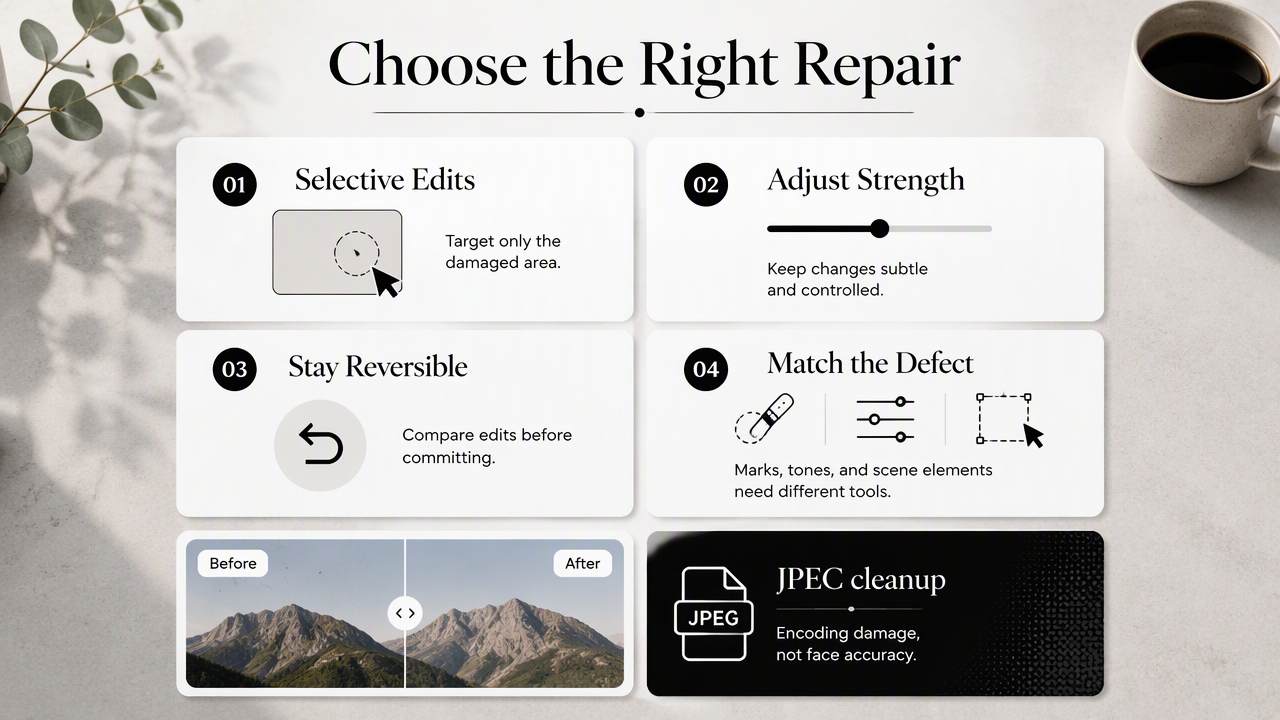
Match the editing method to the defect
Tool labels can hide important differences. An object remover replaces selected content; a compression cleaner targets encoding damage. Neither task guarantees that a generated face becomes more accurate.
| Editing method | Best use | Before-and-after check |
|---|---|---|
| Healing or cloning | Small marks and simple distractions | No repeated texture or visible patch boundary |
| White balance and selective color | Unwanted tint or uneven color | Skin and neutral surfaces stay believable |
| Generative fill or inpainting | Selected background areas | Perspective, shadows, and neighboring objects agree |
| JPEG artifact cleanup | Compression blocks and edge noise | Detail improves without waxy skin or blurred text |
| Sharpening or upscaling | Output sizing and perceived clarity | No halos, exaggerated pores, or invented detail |
The supplied research includes KenjieDec's FBCNN JPEG Artifacts Removal space. Its stated focus is JPEG artifact removal, which should not be confused with correcting generated anatomy. A cleaner compressed image can still contain an implausible hand.
Selection controls matter more than automatic polish
Small selections help preserve surrounding details. Adjustable strength lets an editor stop before skin texture or hair becomes unnaturally smooth. Layers, masks, or equivalent reversible controls also make it easier to reject a repair without discarding other useful adjustments.
For identifiable portraits, file handling deserves attention too. Before uploading, check the service's current retention, deletion, and image-use terms. The research supplied here doesn't establish those policies for individual editing services.
How should AI portrait repairs be checked?
AI portrait repairs should be checked against the untouched original, real reference photos, and the intended display size.
- Save an untouched original and collect clear references.
- Classify each defect as surface-level or structural.
- Apply one small, reversible correction at a time.
- Compare identity, texture, and lighting.
- Inspect the final exported file.
Use a three-view comparison
The untouched image reveals what changed. A recent real photograph anchors identity. The edited version shows whether the repair actually solved the selected problem. Keeping all three visible helps distinguish improvement from a different-looking person.
For example, removing a dark fleck beside a shoulder should leave the shoulder outline unchanged. Correcting a green tint should change color, not erase freckles. If an eye repair also changes the eyelid, cheek, or gaze, the edit has crossed into reconstruction.
A practical inspection uses three scales:
- Full image: Check pose, lighting direction, background continuity, and overall likeness.
- 100% view: Check patch edges, hair strands, jewelry, skin texture, and clothing seams.
- Publication size: Check the actual LinkedIn crop, social avatar, or dating-profile preview.
Judge the exported image, not only the editor preview
Export can change apparent sharpness and introduce compression damage. Keep a high-quality master, then inspect the file intended for upload. Where supported, a lossless working copy avoids repeated JPEG recompression during revisions.
A headshot may pass close inspection but lose its expression in a small circular crop. Conversely, aggressive sharpening that looks crisp as a thumbnail may look harsh at full size. Approval should cover both views.
A successful repair removes the distraction while leaving identity, natural texture, and scene logic intact.
How Looktara fits the portrait workflow
Looktara fits the image-creation stage of a portrait workflow, while a dedicated editor handles specific finishing adjustments. Separating creation from retouching gives each stage a clear purpose: select a suitable image first, then apply only the changes needed for its intended placement.
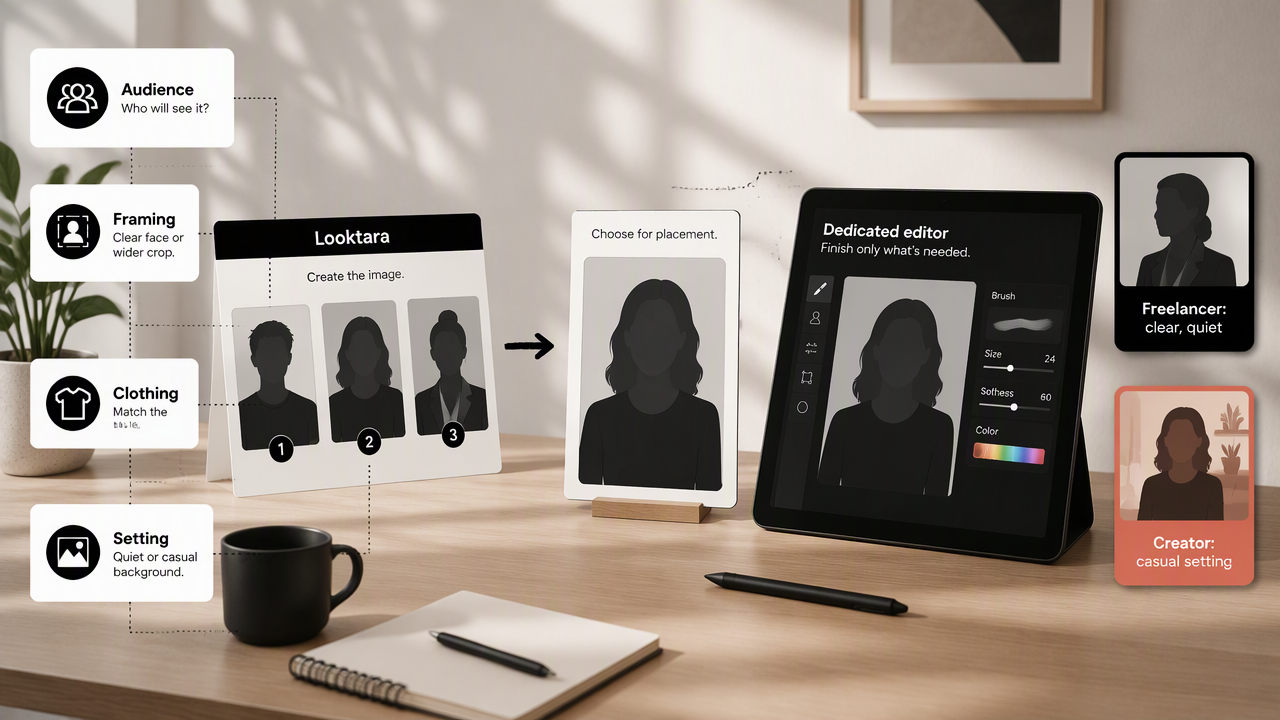
Define the destination before selecting an image
A useful brief names the audience, framing, clothing, and setting. A freelancer's professional profile might call for a clear face and quiet background; a creator's social image might favor a more casual setting. Selection becomes easier when those requirements are settled first.
The Looktara platform belongs in that planning conversation as an image-generation option. The supplied research doesn't document a dedicated artifact-removal feature, so this guide distinguishes generation from local editing rather than treating them as interchangeable.
Keep portrait and product-image checks distinct
Business owners may need both personal portraits and supporting product imagery. Those assets require different approval checks: portraits need faithful likeness; product images need accurate shape, labels, and recognizable details.
For fitness businesses planning channel-specific assets, the site's fitness LinkedIn product-photo generator and fitness Instagram product-photo generator are relevant starting points for the product-image brief.
- Define the intended placement and crop.
- Select images that already match the brief.
- Reserve retouching for clearly identified finishing tasks.
- Keep an approved master for consistent reuse.
FAQ: Natural-looking AI portrait cleanup
Natural-looking portrait cleanup depends on preserving recognizable details rather than maximizing smoothness. These questions address common choices between correction, enhancement, and replacement.
Can JPEG artifact removal fix distorted hands?
JPEG artifact removal targets compression damage, not hand anatomy. Reducing blocks or edge noise may make an image clearer, but it doesn't establish the correct number, position, or shape of fingers. A structurally distorted hand usually needs regeneration or replacement from a suitable real photograph, followed by checks for lighting and pose.
Should AI-generated skin be made perfectly smooth?
Perfectly smooth skin isn't a reliable goal for an authentic portrait. Preserve plausible texture, freckles, and distinguishing features when they agree with reference photos. Local correction can remove an isolated distraction, but broad smoothing may make a professional or dating-profile image less representative of the actual person.
Can mismatched eyes be repaired with a small edit?
A small edit may suit a minor color or highlight issue when eye shape and gaze are already correct. Unequal anatomy, conflicting gaze, or changed eyelids are different problems. Those repairs can alter identity even within a tiny selection, so regeneration and comparison with real references are usually preferable.
Does upscaling make an AI portrait more accurate?
Upscaling can increase output dimensions and change perceived detail, but larger dimensions don't prove greater accuracy. Generated eyelashes, pores, or fabric patterns may look convincing without matching reality. Evaluate likeness and anatomy before upscaling, then inspect the enlarged result for new textures, halos, and over-sharpened edges.
Conclusion
A photo editor for removing AI artifacts works best when the repair target is specific and the acceptance criteria are clear. Start with one image, classify its defects, and approve only corrections that preserve identity.
For a new image brief, visit looktara.com and consider Looktara at the creation stage. Then save the selected original, make reversible finishing edits, and check the actual upload-sized export before publishing.
Generated by EarlySEO.com